Documentation Index
Fetch the complete documentation index at: https://solarservicesdocs.com/llms.txt
Use this file to discover all available pages before exploring further.
- Download & install SteelSeries Sonar from the link below.
SteelSeries Sonar Download: https://steelseries.com/gg/downloads/gg/latest/windows - Once you install & open the app, create an account or login if you already have an account.
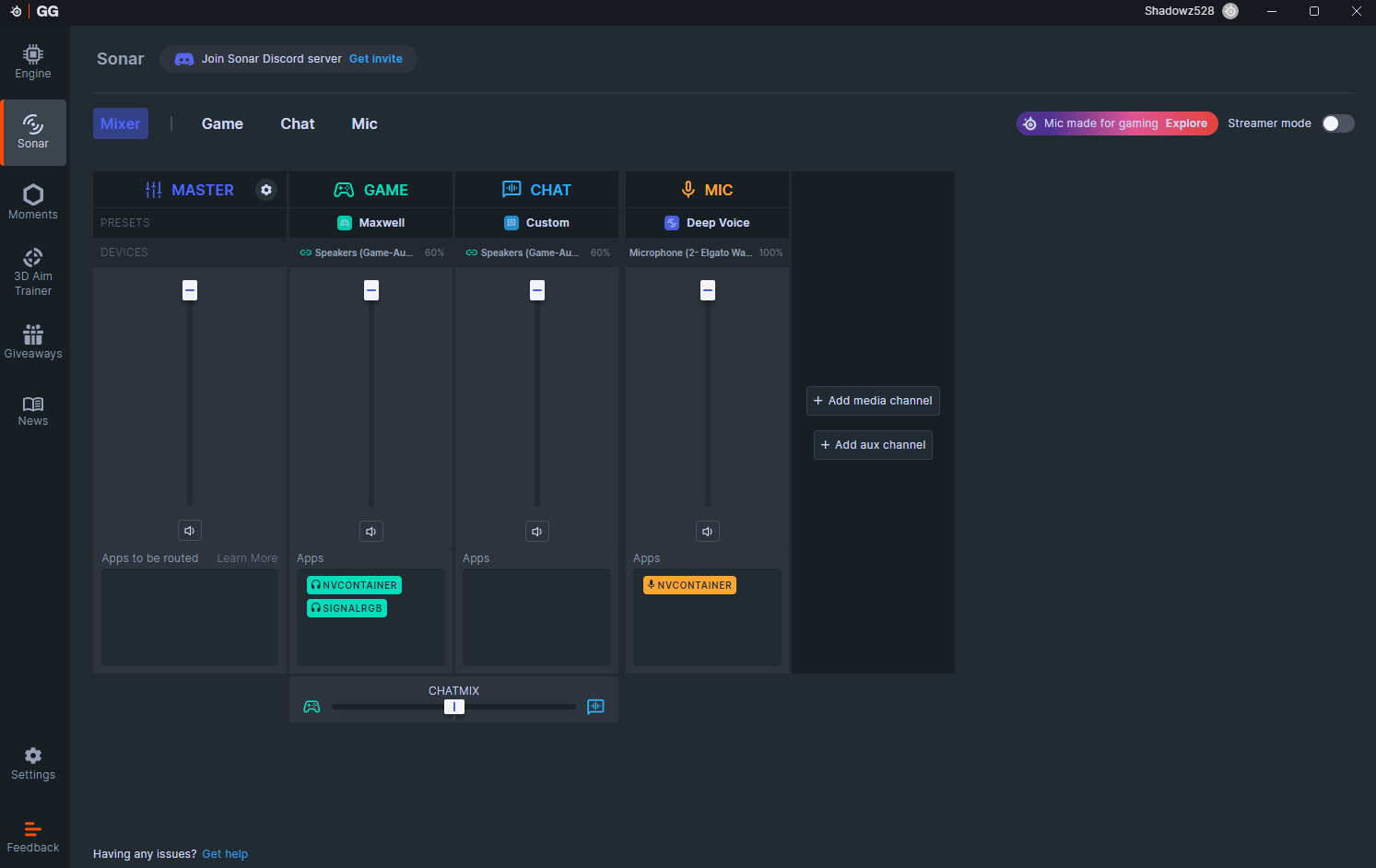
- Click on the Sonar tab as seen below, for first time users you will need to setup your inputs/outputs. You can continue to the next step once you see the screen below & Sonar is enabled.
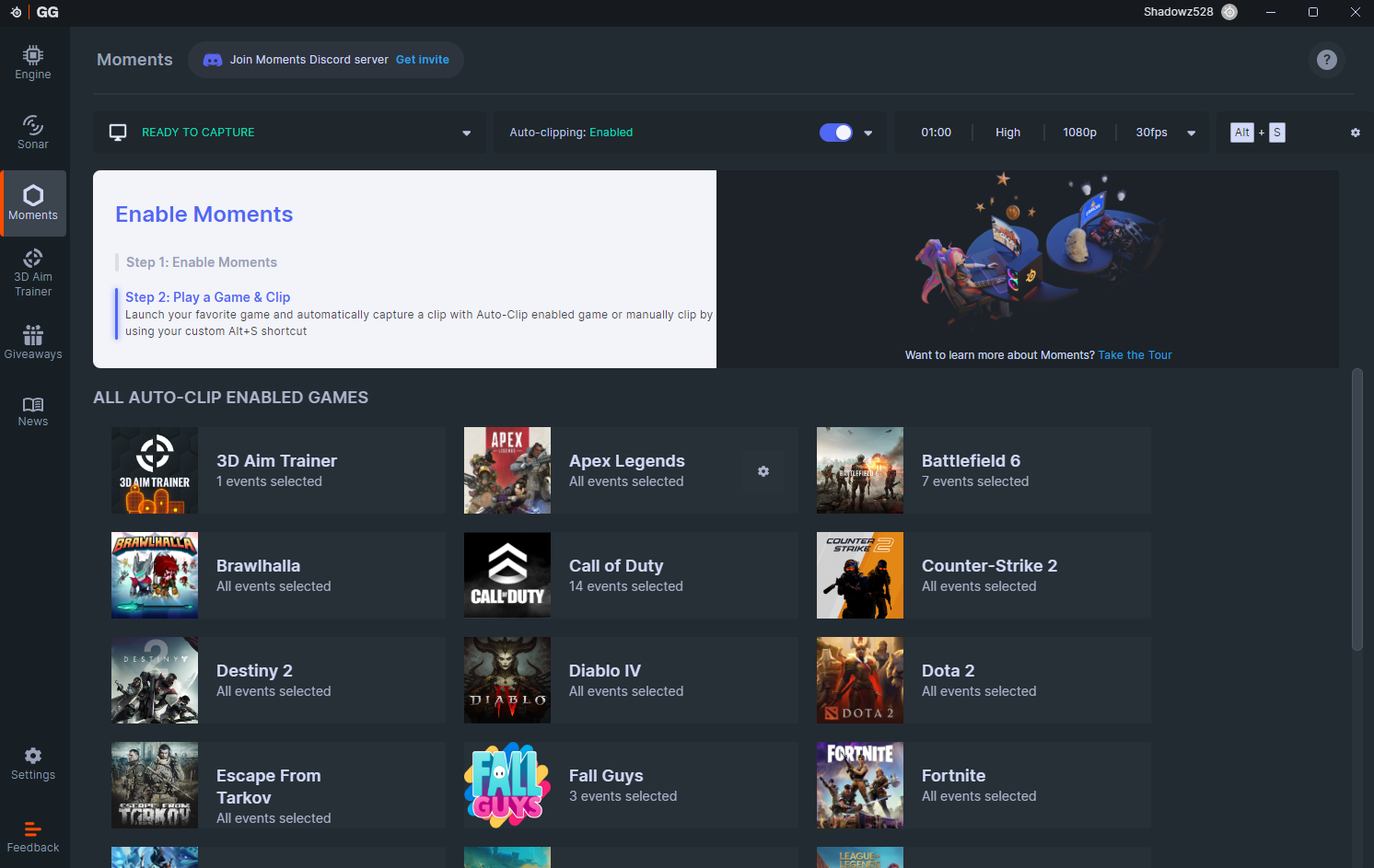
- Click on the Moments tab as seen below, for first time users you will have a prompt you will need to go through. You can continue to the next step once you see the screen below & Moments is enabled.
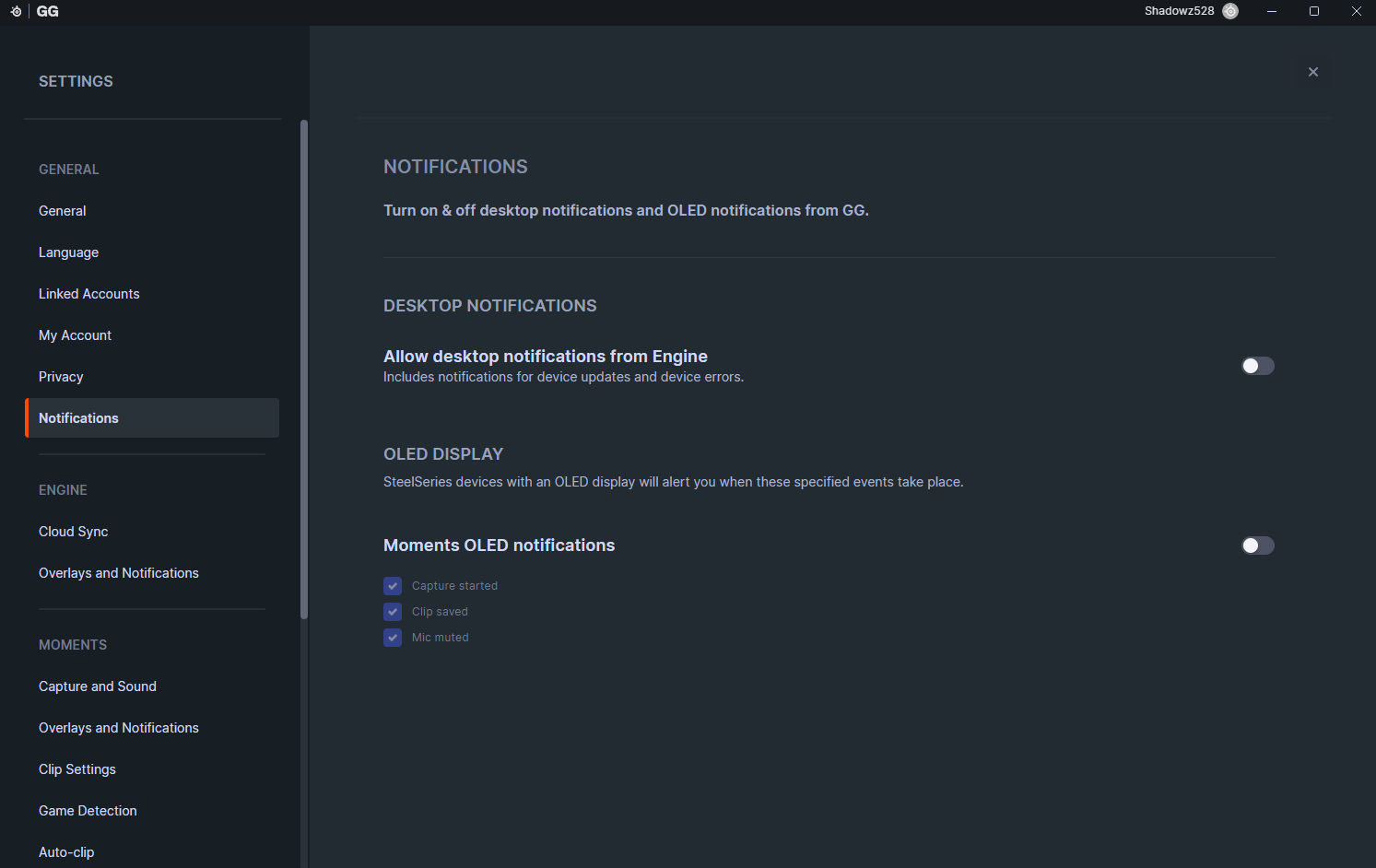
- Now enter the settings part of the app, and click on the Notifications tab under General. Ensure both options available are disabled.
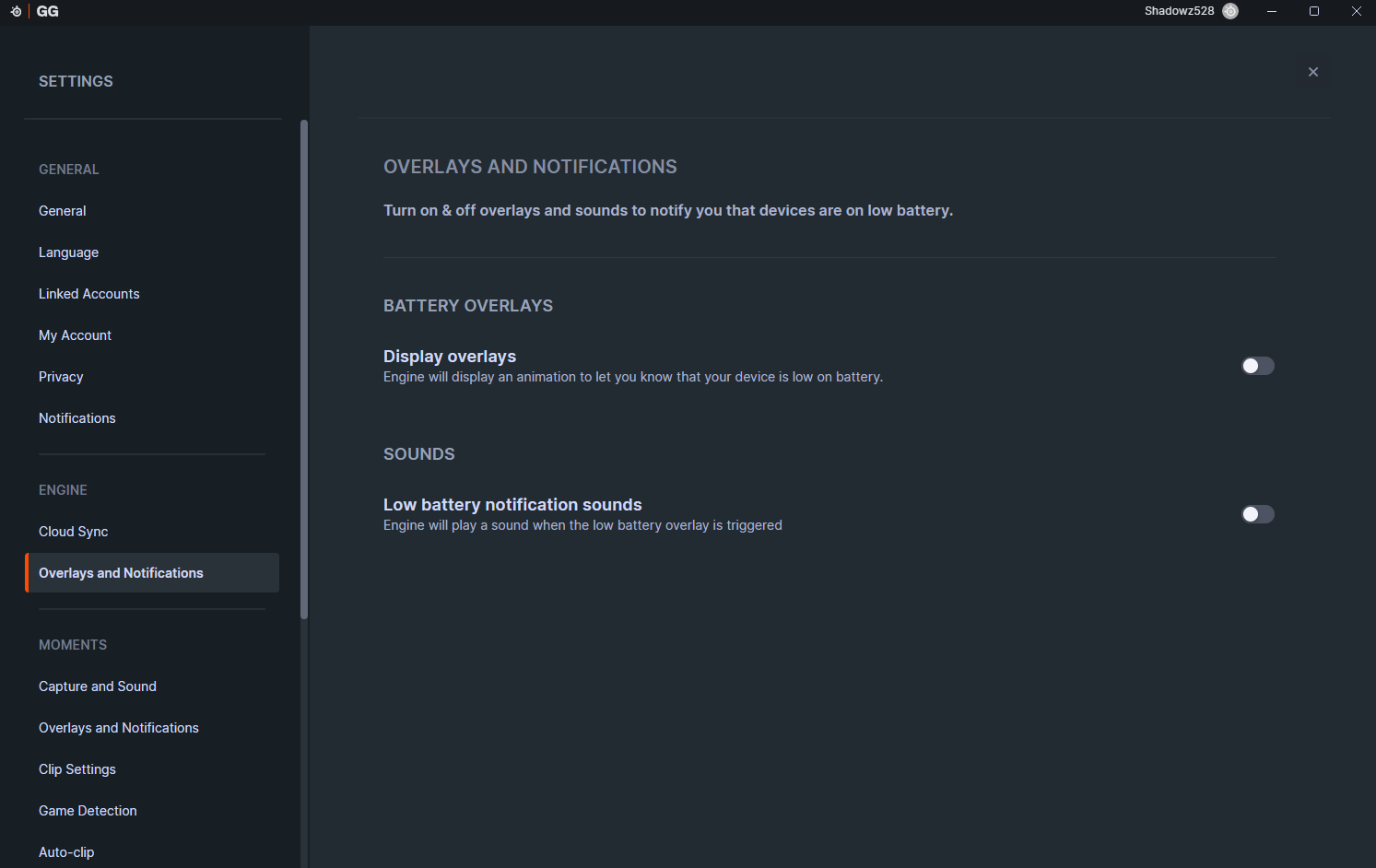
- Now go to the Overlays and Notifications tab under Engine. Ensure both options available are disabled.
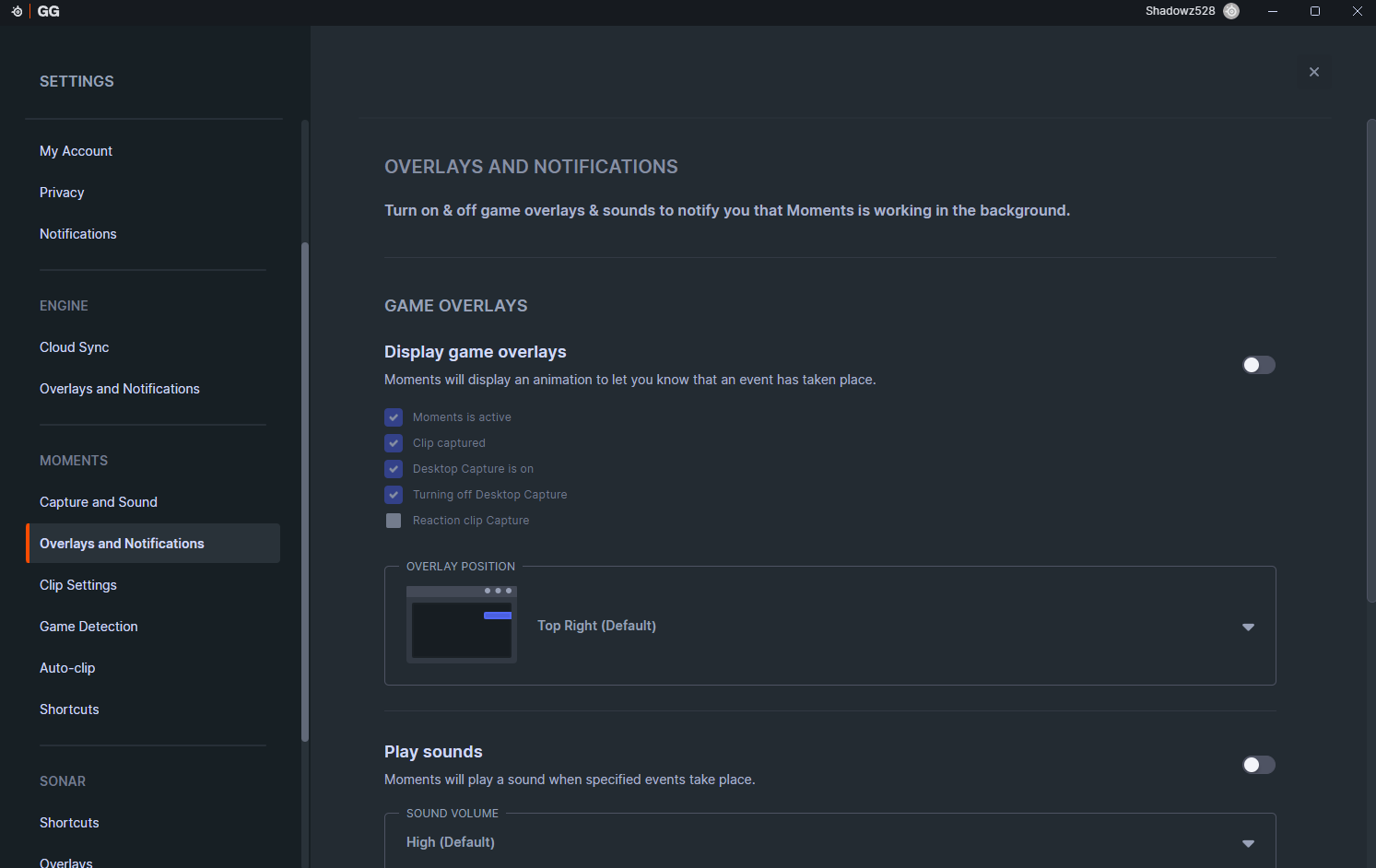
- Now go to the Overlays and Notifications tab under Moments. Ensure the 3 options available are disabled.
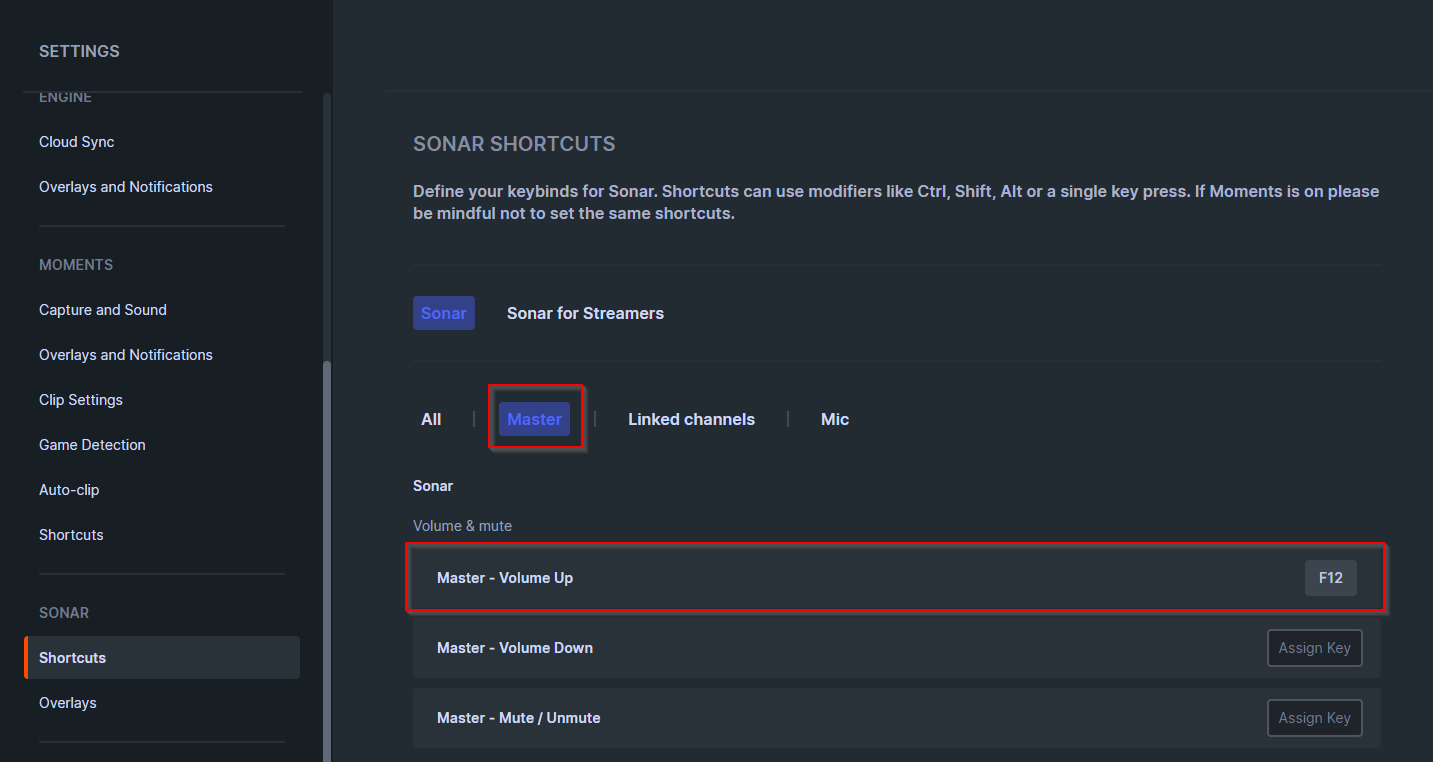
- Now go to the Shortcuts tab under Sonar. Click Master, then set “Master - Volume Up” to a key such as F12 as seen below. This is what is referred to as your Sonar Shortcut Key in the guide, it is what initializes the overlay for the cheat to utilize.
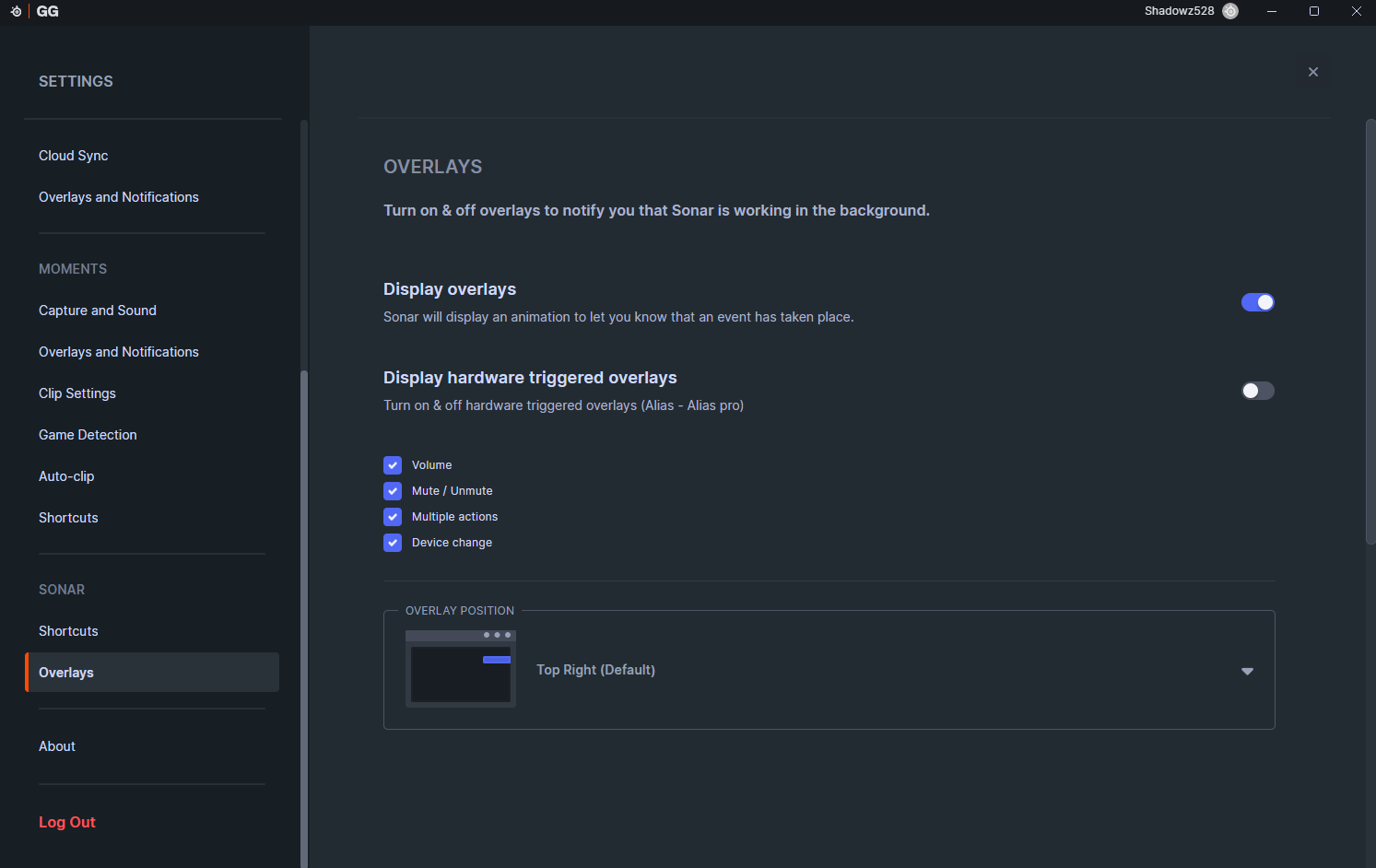
- Now go to the Overlays tab under Sonar. Ensure the top option is enabled and the bottom option is disabled as seen below.