
Documentation Index
Fetch the complete documentation index at: https://solarservicesdocs.com/llms.txt
Use this file to discover all available pages before exploring further.
Run the loader.
Download the correct loader for the product you purchased, then open the loader, please note that on first launch the file may download an update and close (reopen it again), while also randomizing its file name, so place it in a folder in your downloads to ensure you don’t lose track of it.Loader Downloads: https://solarservices.cc/downloads
Ensure one of the valid overlays for the product is running.
This product requires one of the following overlays below to be running, follow one of the guides below to ensure it is setup properly.Medal Overlay: https://solarservicesdocs.com/guides/overlay-setups/medal-overlayDiscord Overlay: https://solarservicesdocs.com/guides/overlay-setups/discord-overlay
Load the cheat.
Press Load & launch the game once the loader closes after it finishes downloading data.
Before your first launch, your PC may restart. If you see a “You’re about to be signed out” message, this is expected. It simply means some security settings needed to be updated, and a restart is required for those changes to take effect.
Wait for the cheat to initialize.
Depending on the product, menu initialization can happen within seconds or after a minute, be sure to wait around 2 minutes after loading your game.
Toggling the cheat menu.
The menu toggle key for the product is Insert. If you do not have this key on your keyboard, you can follow the guide below to remap a key to Insert.
Remap Guide: https://solarservicesdocs.com/guides/pc-setup/remapping-insert-key
Remap Guide: https://solarservicesdocs.com/guides/pc-setup/remapping-insert-key
How To Avoid Bans.
Most game bans happen because of aimbot use. Anti-cheat systems are highly effective at detecting aimbots, they analyze mouse movements, build a behavioral “fingerprint” of your aim, and flag sudden, unnatural changes in accuracy. Many anti-cheats now use AI to spot these patterns, making aimbot use relatively easy to detect.We HIGHLY recommend ESP Only use if possible, read below on why.ESP provides visual information, such as seeing enemies through walls without ever interacting with your mouse or aim mechanics. Since there’s no input for anti-cheat software to track, there’s no sudden change in your aim or behavior to flag. This makes ESP far harder to detect, giving you a much lower risk profile over long-term play.
Error Fixes
Please make sure PIN is not set in Windows sign-in options and manually disable Hyper-V
Please make sure PIN is not set in Windows sign-in options and manually disable Hyper-V
- Open windows search and type “Sign-in Options”, then open it in settings.
- Find the setting below and make sure it is disabled.
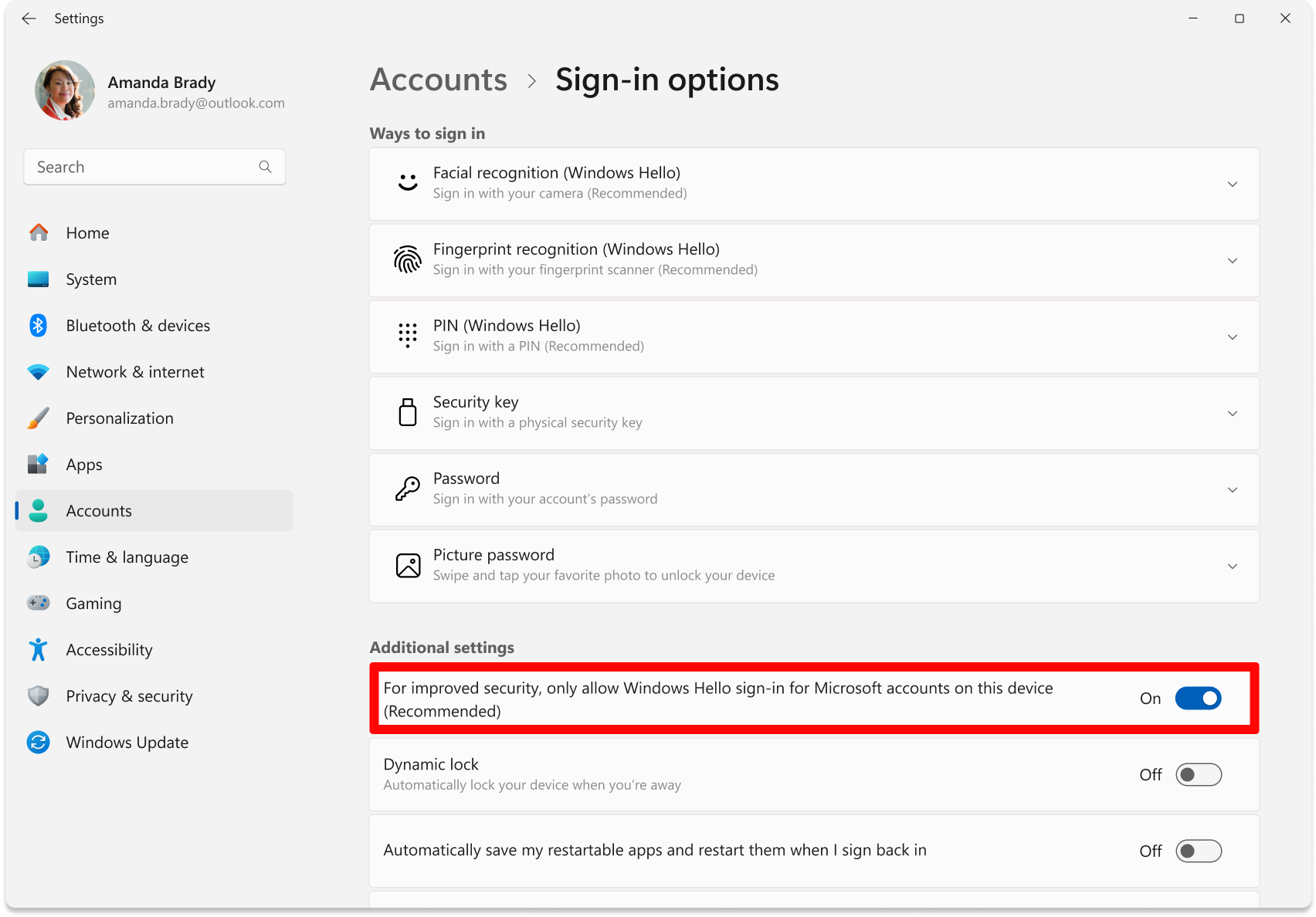
- Click on PIN (Windows Hello), and ensure it is NOT SET, if it is, then remove your PIN and make sure a password is set.
- Download & run this file, it will automatically restart your PC after 10 seconds: https://download.solarservicesdocs.com/remove-hvix-hvax
Any Disable/Failed To Disable Hyper-V Errors
Any Disable/Failed To Disable Hyper-V Errors
Download & run this file, it will automatically restart your PC after 10 seconds: https://download.solarservicesdocs.com/remove-hvix-hvax
Failed to allocate/map memory
Failed to allocate/map memory
Run DISM Repair Commands/Failed To Repair Files/Restore System Files
Run DISM Repair Commands/Failed To Repair Files/Restore System Files
- Open Command Prompt as Administrator.
- Enter each line below seperately into the command prompt waiting till each one finishes then doing the next one:
DISM /Online /Cleanup-Image /CheckHealth
DISM /Online /Cleanup-Image /ScanHealth
DISM /Online /Cleanup-Image /RestoreHealth
sfc /scannow - Restart your PC.
Failed to load crt lib/Install Visual Runtimes
Failed to load crt lib/Install Visual Runtimes
- Download The Visual C++ Runtimes below.
https://download.solarservicesdocs.com/runtimes - Extract the folder.
- Run the install.bat in the extracted folder and wait until it installs everything.
- Restart PC
Install DirectX
Install DirectX
- Download The DirectX Setup below.
https://download.solarservicesdocs.com/directx - Run the installer and wait until it is finished.
- Restart PC