
Make Sure To Follow The Anti-Virus Setup First!
- Run the loader.
- Press the sonar shortcut key then click Load & launch the game once the loader closes after it finishes downloading data. Menu key: Insert.
Follow the SteelSeries Sonar Overlay Setup part of the guide for this part (Or NVIDIA if you are on a NVIDIA GPU).
Error Code Fixes
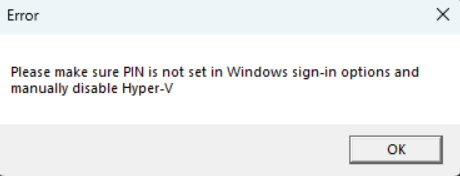
- Open windows search and type “Sign-in Options”, then open it in settings.
- Find the setting below and make sure it is disabled.
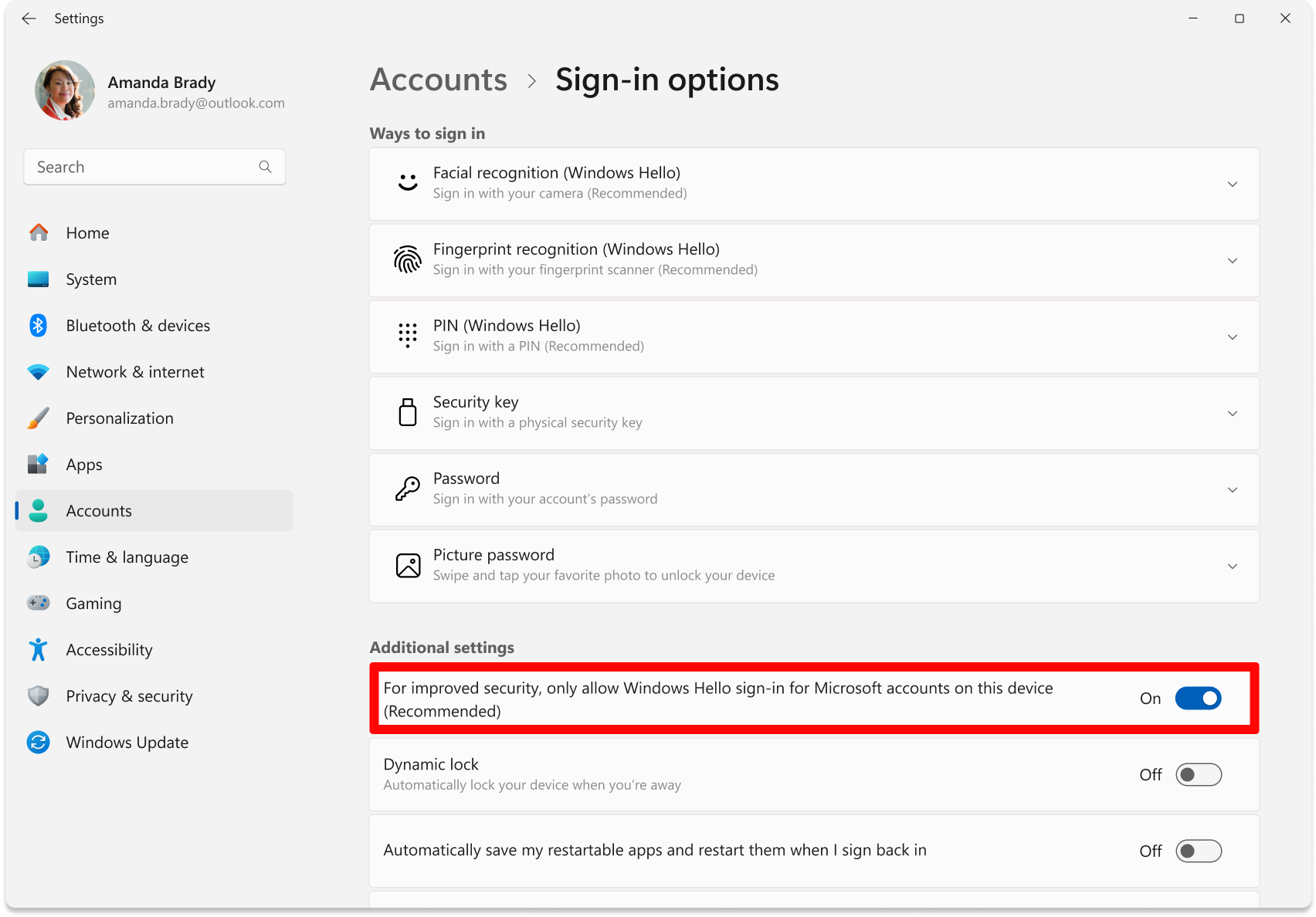
- Click on PIN (Windows Hello), and ensure it is NOT SET, if it is, then remove your PIN and make sure a password is set.
- Download & run this file (your PC should restart if left open, if it doesnt then manually do so): https://mega.nz/file/59ZljKbK#STzjFdn4fvUtKVcwZblClODVrNxW4AoDTT2qrNtw2hY
Run DISM repair commands to restore system files:
- Make sure that you have 16GB or more RAM in your PC.
- Disable everything in Task Manager -> Startup and then try again after PC restart.
- Make sure that loader located on PC and not on cloud space (e.g OneDrive, Mega.nz).
- Download AutoRuns and disable everything that related to Microsoft/Windows/CurrentVersion/Run. But DO NOT touch anything else.
- Open Command Prompt as Administrator.
- Enter each line below seperately into the command prompt waiting till each one finishes then doing the next one:
DISM /Online /Cleanup-Image /CheckHealth
DISM /Online /Cleanup-Image /ScanHealth
DISM /Online /Cleanup-Image /RestoreHealth
sfc /scannow - Restart your PC.